Create an application
Register a free account on the Nexconn official website.
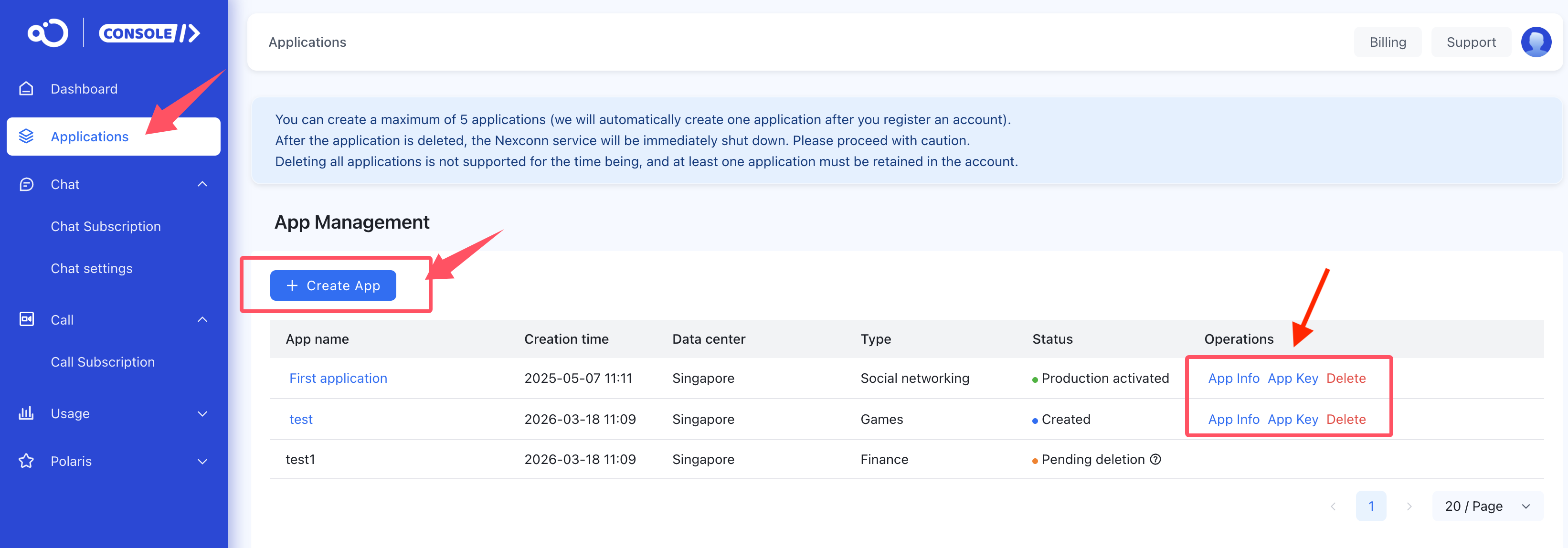
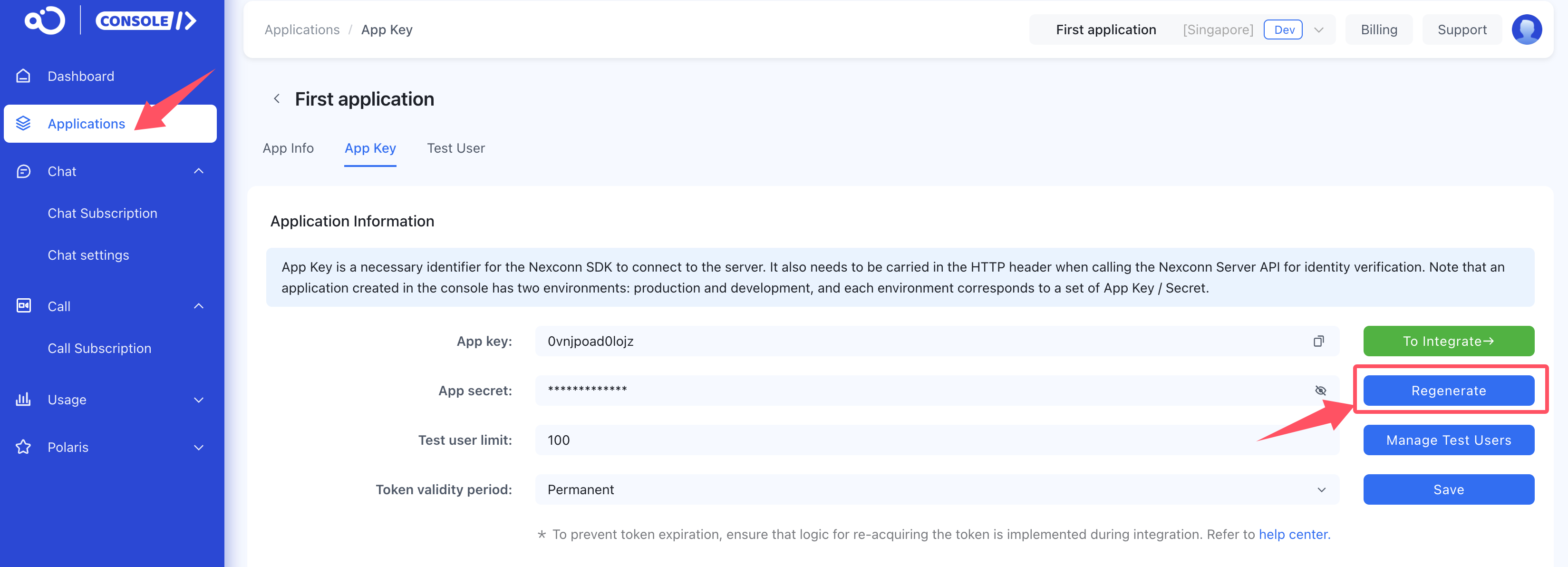
After successful registration, the console automatically creates your first application (default application name: First application) and generates the App Key and App Secret for the Development environment by default. You can get this information directly on the Console > Applications > App Key page.
You need to connect to the IM service through an “application”. You can create different applications for your projects, and data is not shared between different applications.
Prerequisites
We recommend that you understand the following basic concepts:
-
App Key & App Secret: The credential pair that identifies your application to Nexconn services.
-
App Key — Required when initializing the Chat SDK. Included in every SDK connection to Nexconn servers.
-
App Secret — Used server-side to authenticate API requests. Never expose it in client-side code.
Each Nexconn application has two separate credential sets — one for the Development environment and one for Production — providing full data isolation between environments.
- What is an access token: An access token is the user’s identity credential for connecting to Nexconn on the app. Every user needs an access token to connect to the server, and changing users requires changing the access token. You must submit the access token to the server every time you initialize the connection.
Set access token validity period: Permanent by default. For details, see: How does the access token update mechanism work ?
Steps to create an application
Two methods:
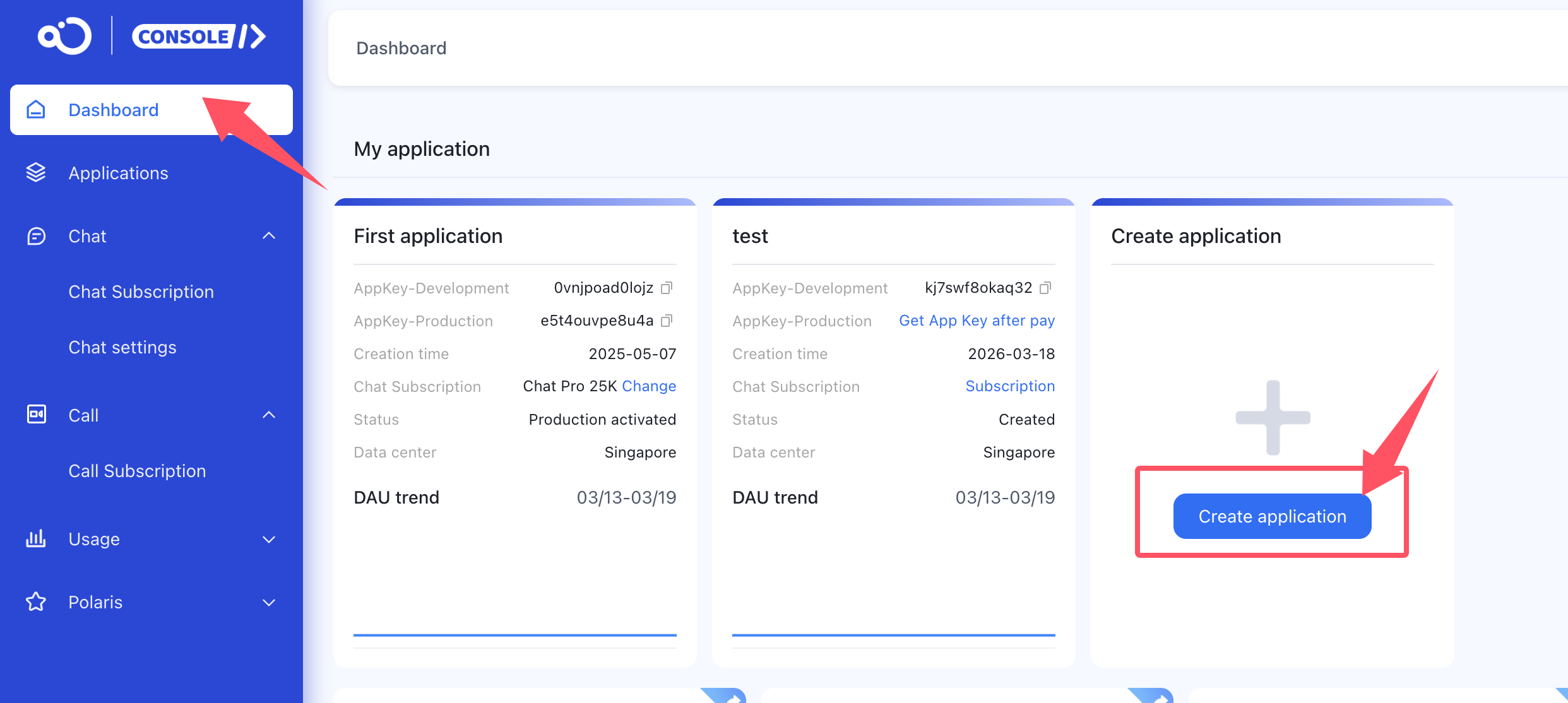
- On the Dashboard page, click Create application.
- On the Applications page, click Create application.
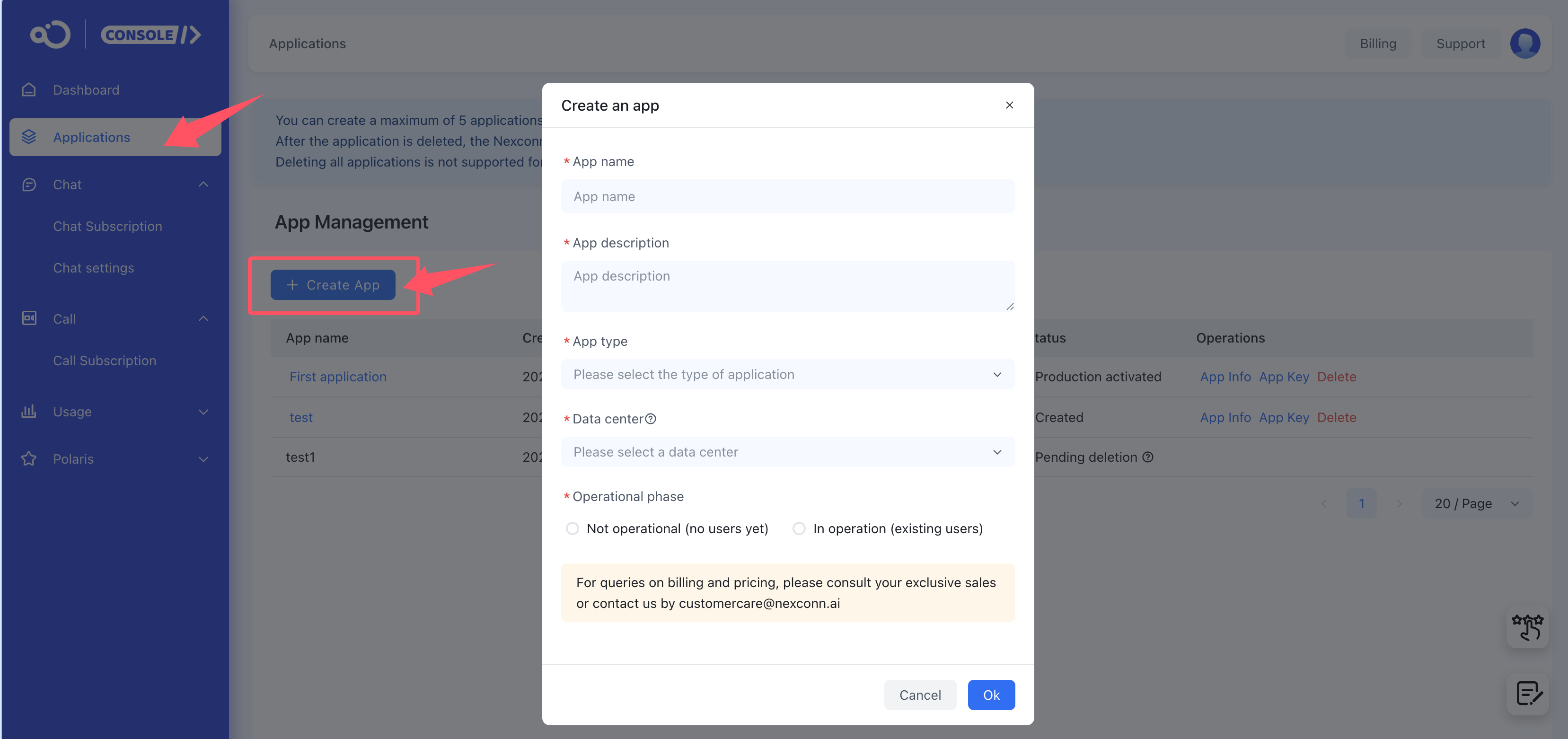
- App name - Required, can be modified
- App description - Required, can be modified
- App type - Required, can be modified
- Data center - Required. The data center cannot be modified after selection, so please choose carefully. Related documentation: Data centers
- Operational phase - Required, can be modified

Manage an application
After successfully creating an application, you can view all related information and the application status on the Application management page.
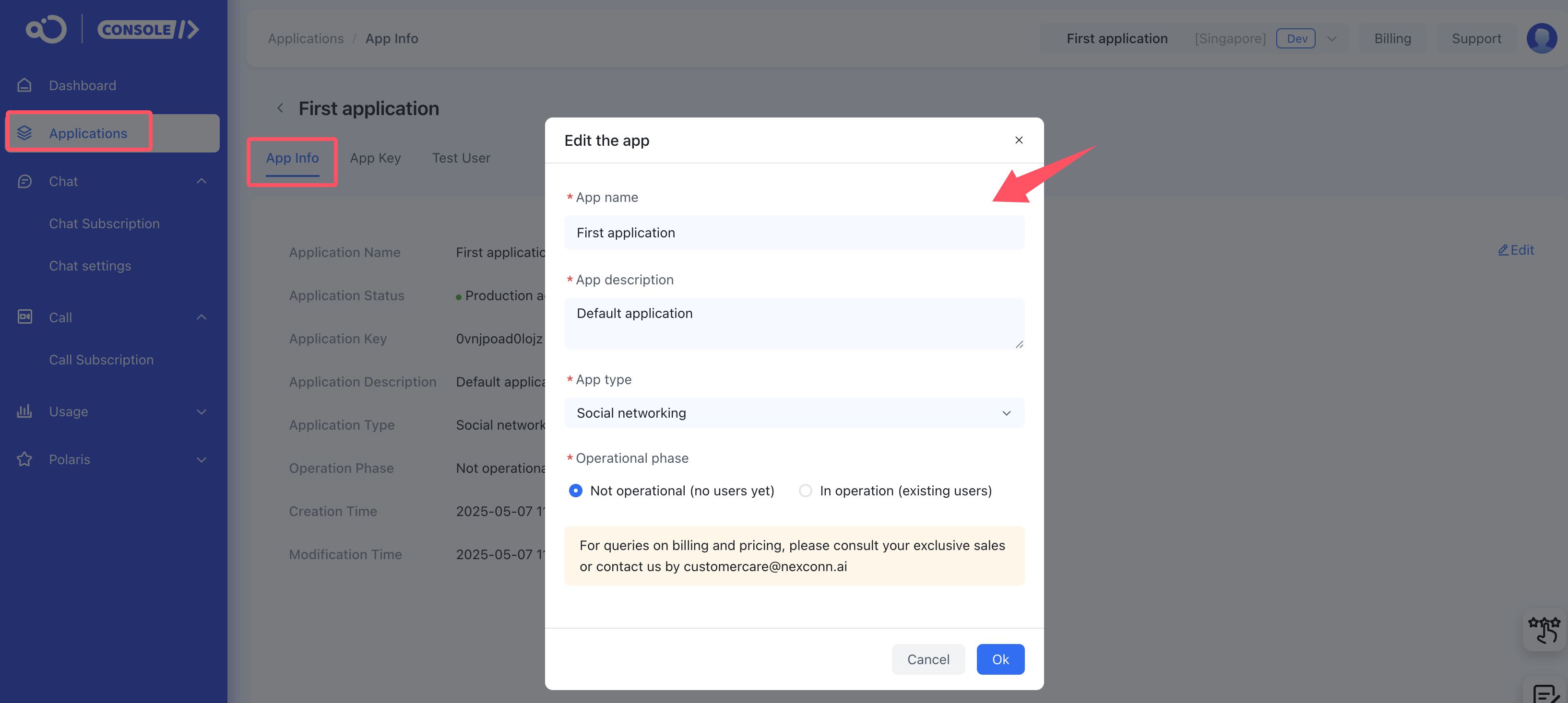
- Application profile page
You can modify the App name, App description, App type, and Operational phase at any time.
- Key management page
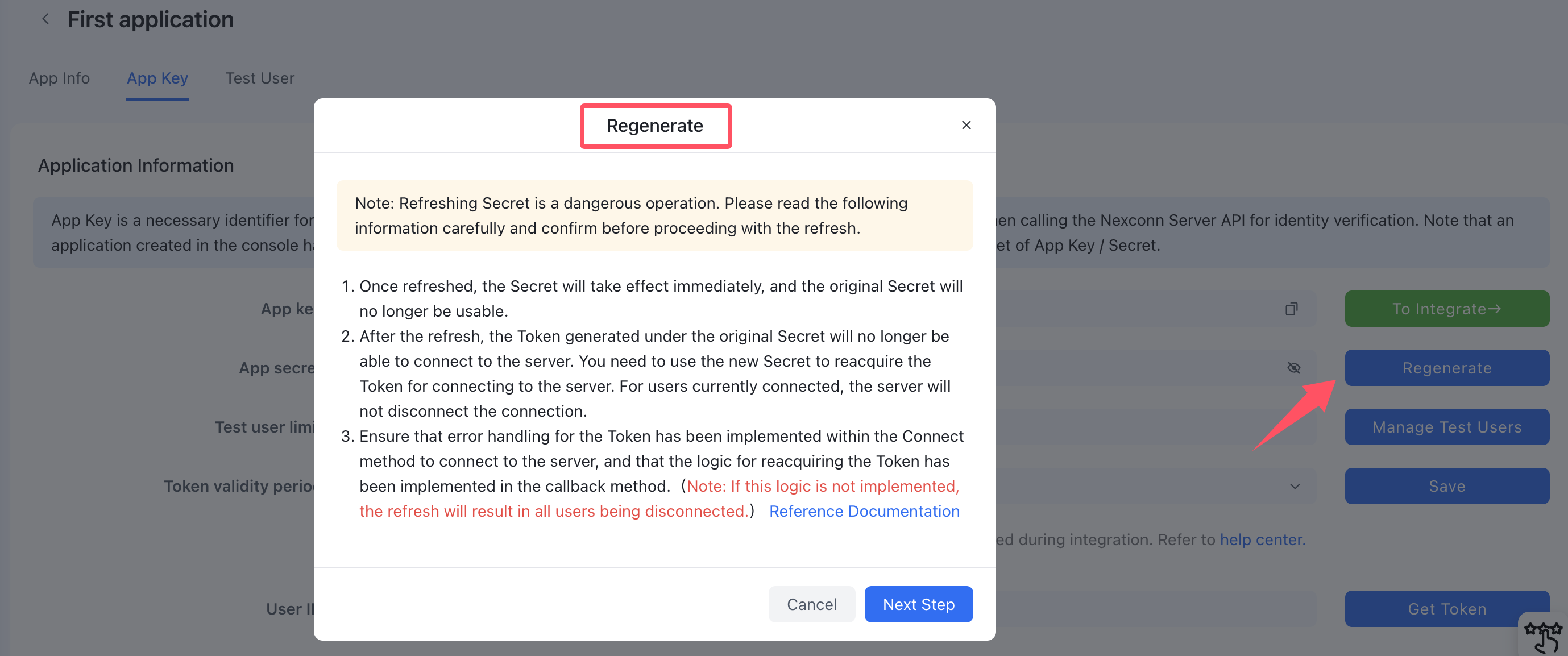
- You can view the App Key and App Secret for this application, and perform a “refresh key” operation if necessary.
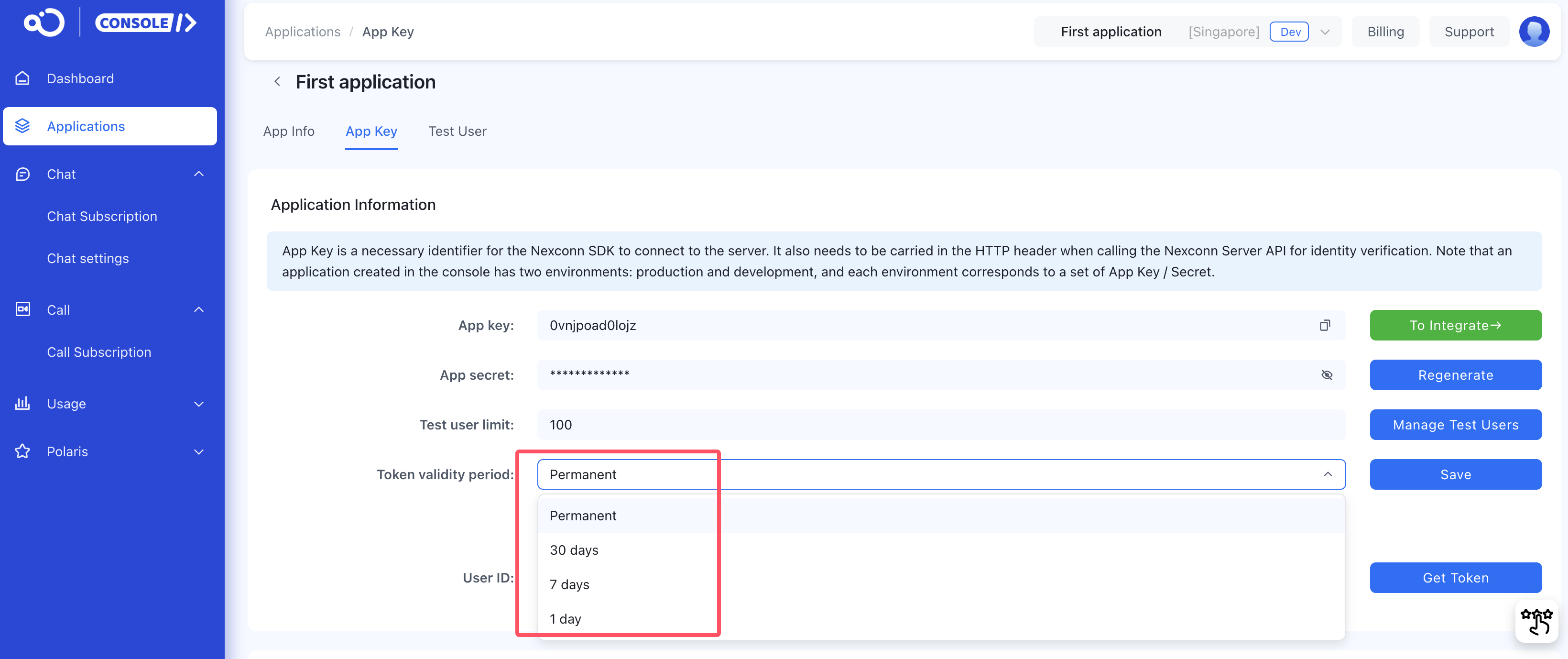
- You can change the access token validity period. It is permanent by default, and you can also select 30 days, 7 days, or 1 day.
Related documentation: What to do if the SDK’s connect method returns an invalid access token
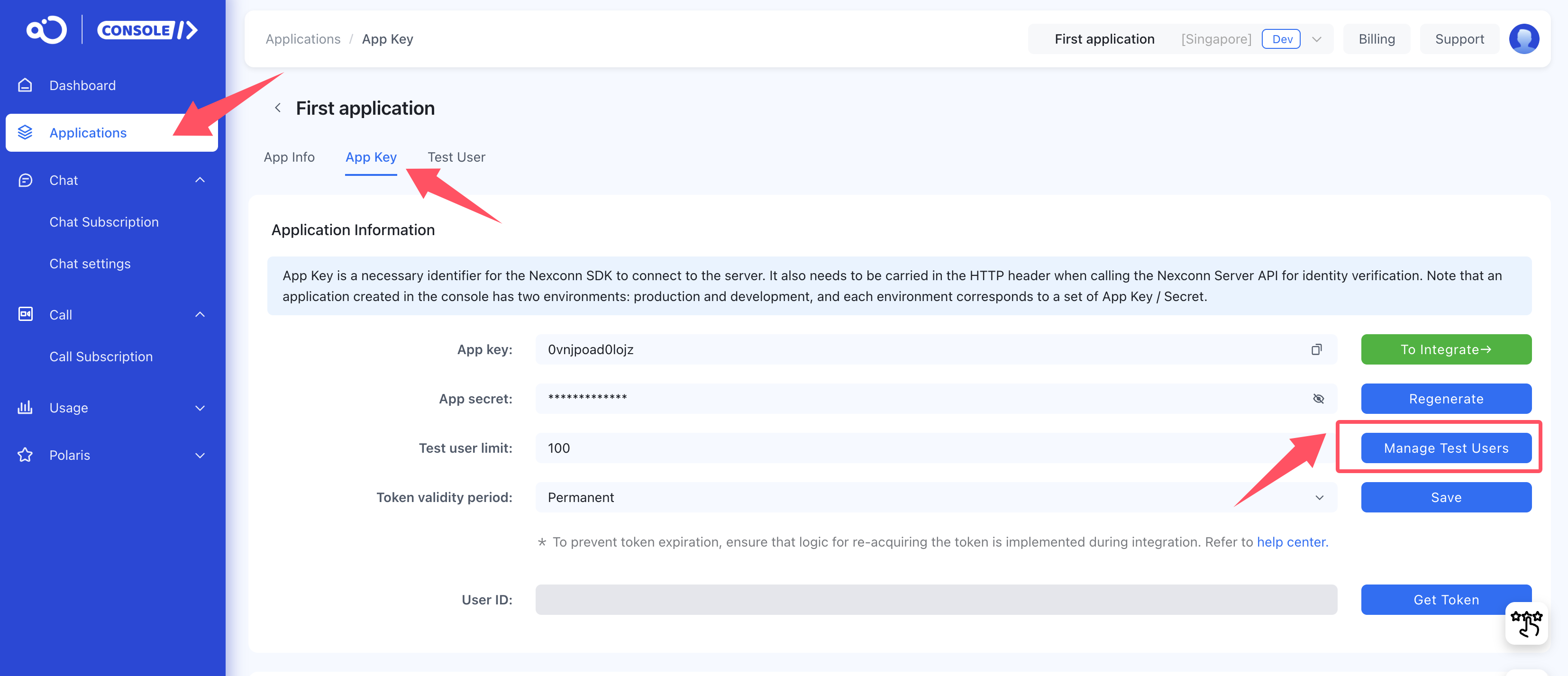
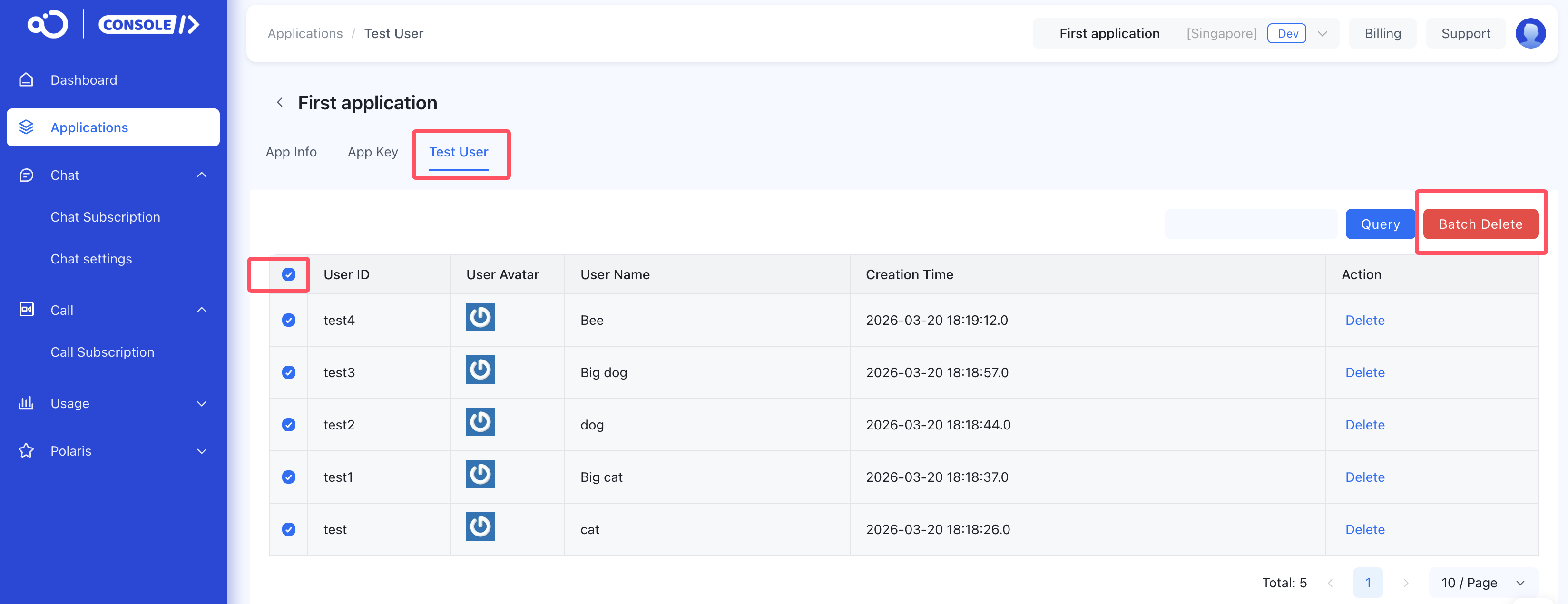
- If you select the development environment, the maximum number of registered users is 100 by default. If you need to query or batch delete them for reuse, click Manage test users.
Note: The production environment has no limit on registered users, so this button is not available.
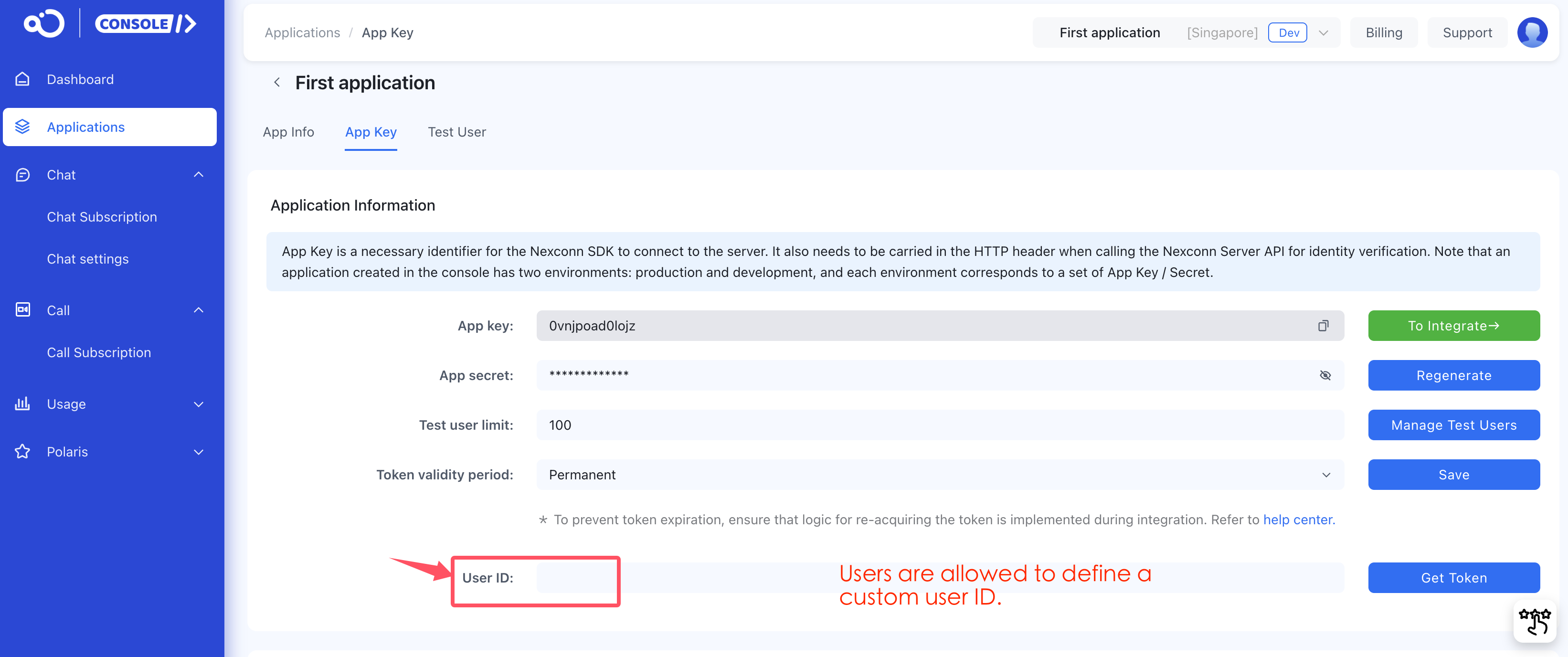
- Quickly create a user (get an access token): You can enter a user ID in the console to quickly get the access token information. After getting the access token, you can quickly integrate and experience the SDK.
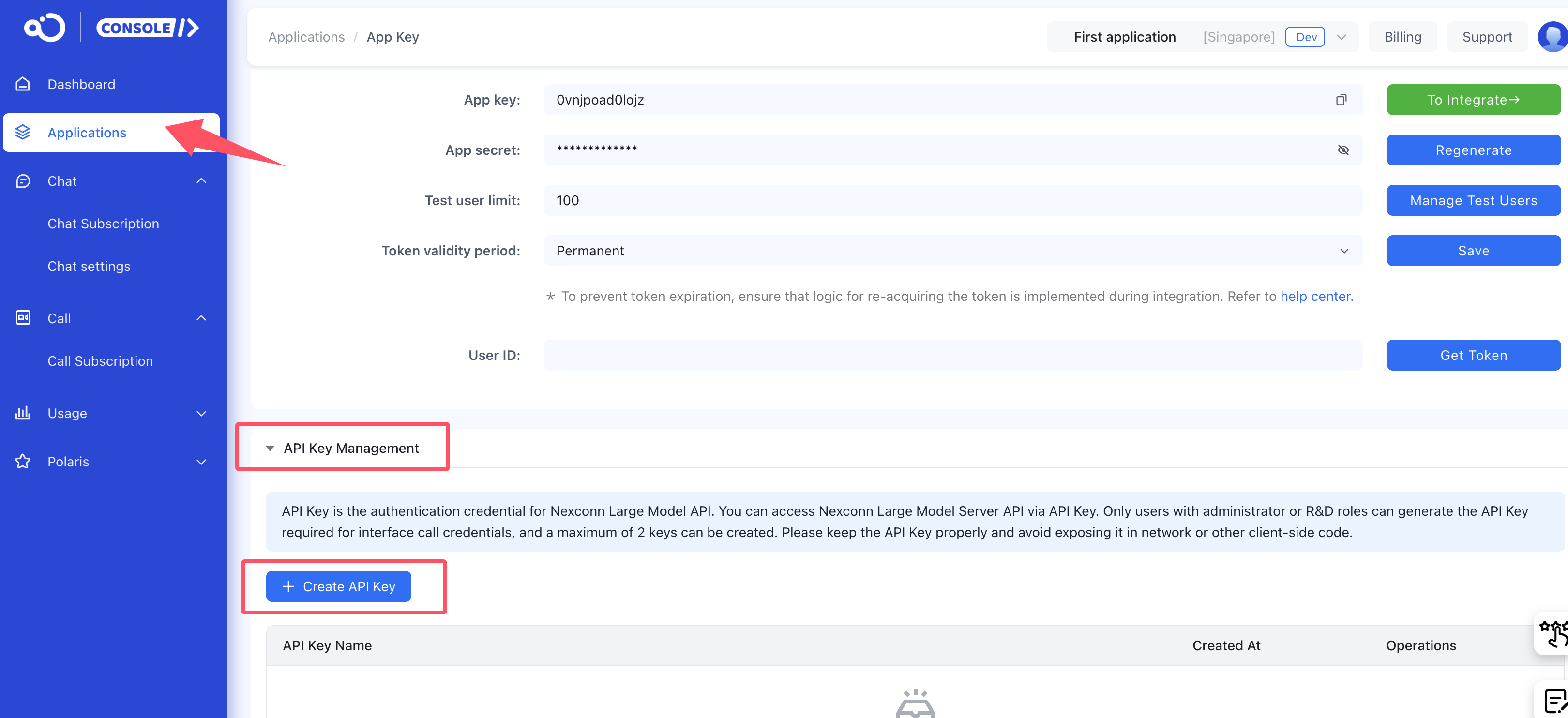
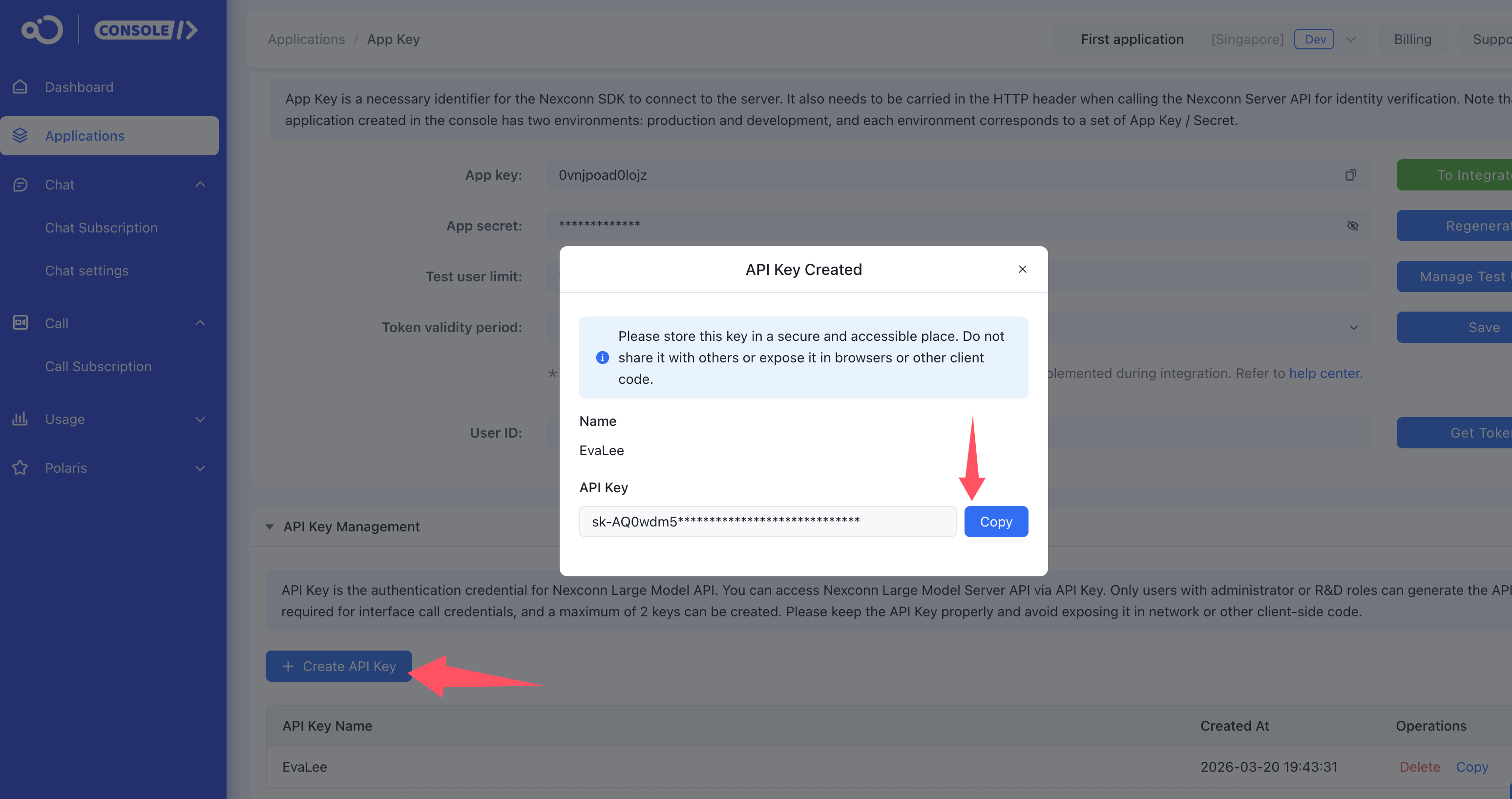
- API Key Management: API Key is the authentication credential for Nexconn Large Model API. You can access Nexconn Large Model Server API via API Key. Only users with administrator or R&D roles can generate the API Key required for interface call credentials, and a maximum of 2 keys can be created. Please keep the API Key properly and avoid exposing it in network or other client-side code.
Delete an application
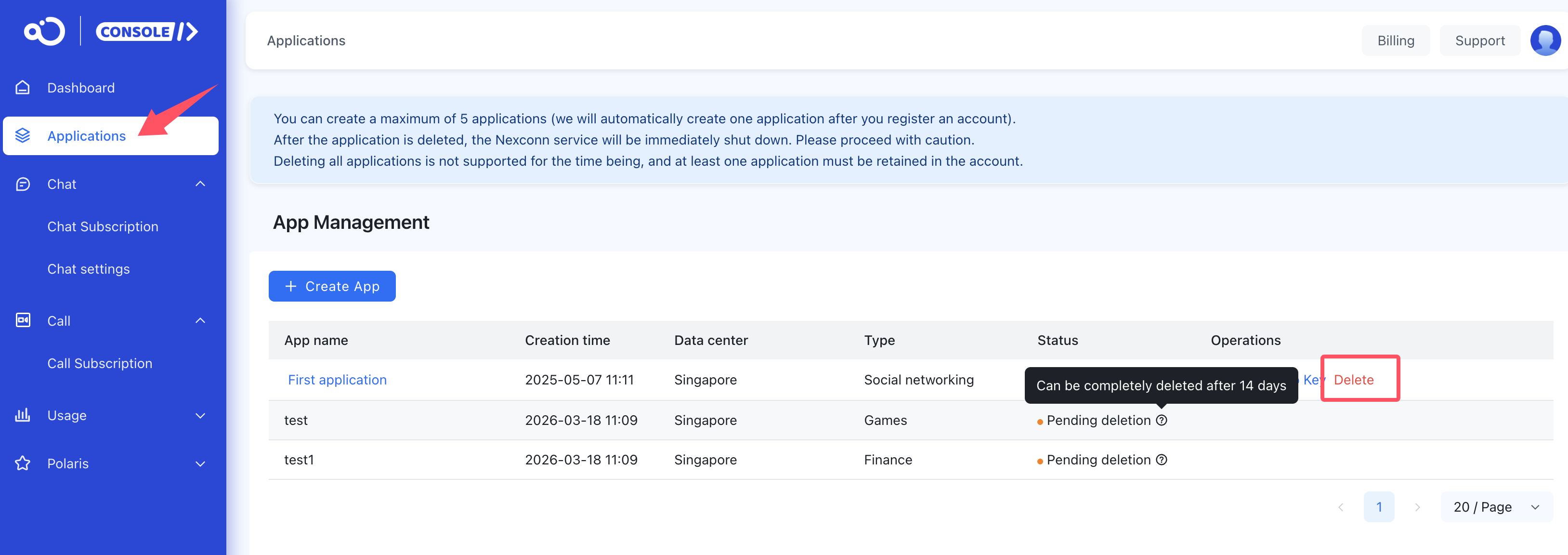
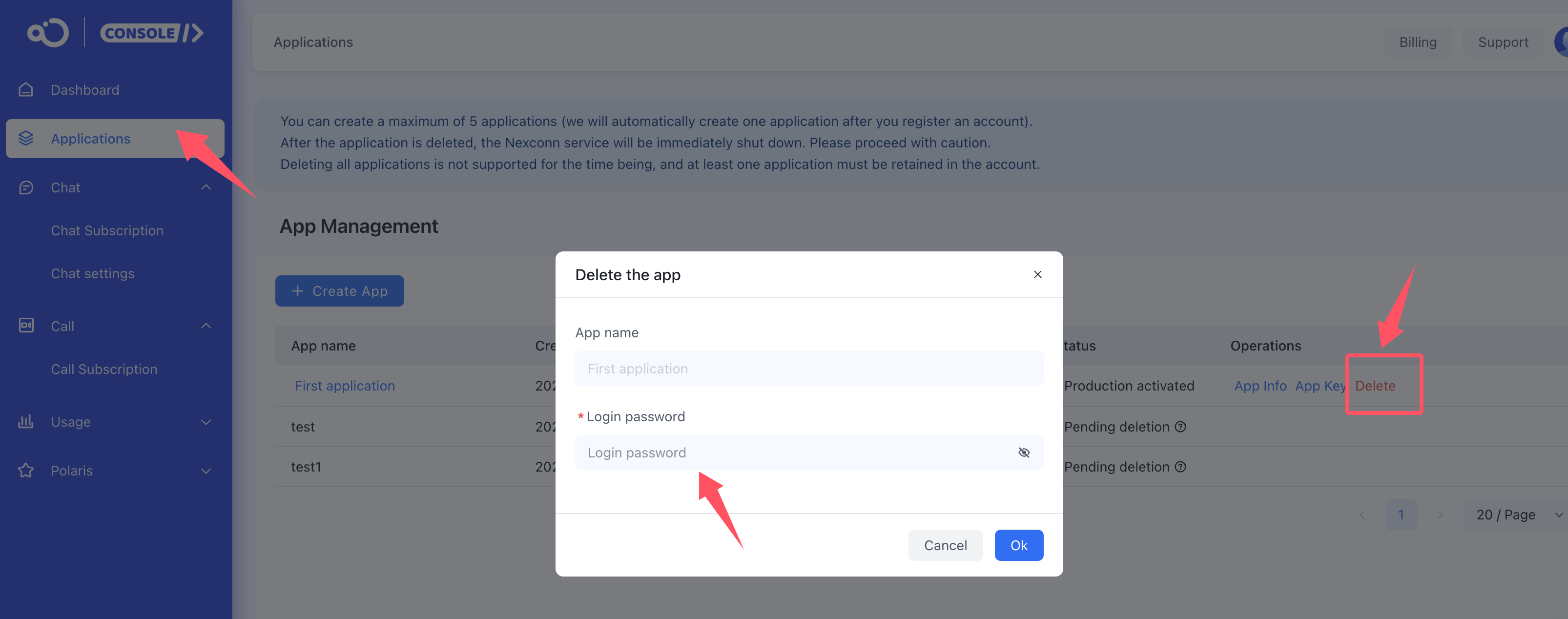
In the console, select the corresponding application to perform the Delete operation.
- You can create a maximum of 5 applications (we will automatically create one application after you register an account).
- After the application is deleted, the billing system immediately settles the bill. If there are excess charges, it will deduct the fee from the credit card and send the bill to the customer’s primary account email.
- After the application is deleted, the Nexconn service will be immediately shut down. Please proceed with caution.
- You must keep at least one application in your account. Deleting all applications is not supported at this time.
- Complete deletion of an application: After an application is deleted, there is a 14-day protection period to prevent accidental operations. It cannot be permanently deleted within 14 days, and you can perform a complete deletion after 14 days.
Related documentation: Starter and pro plans
If you have any questions about this feature, submit a ticket to contact us.