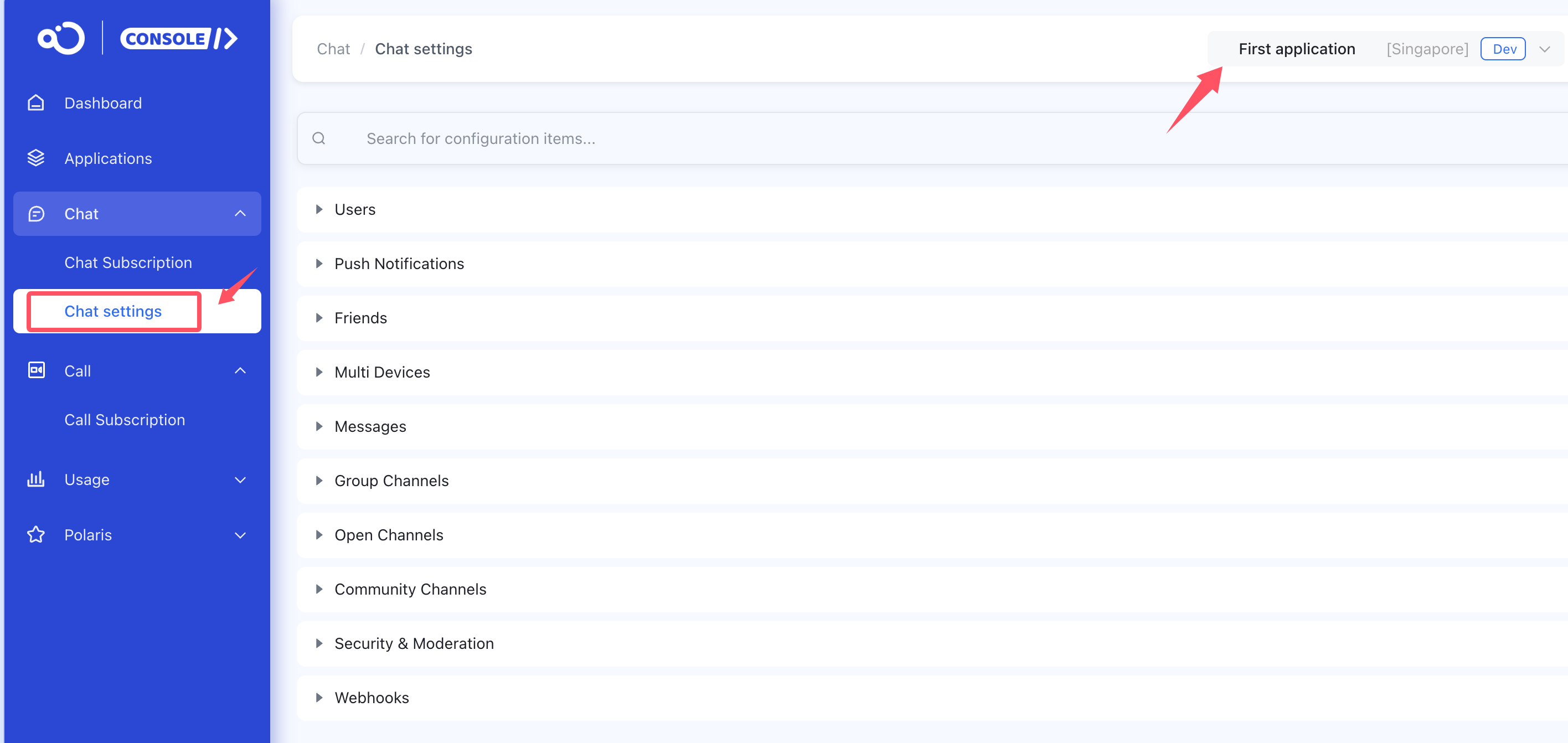
The following features can all be enabled directly in the console. After confirming that the application name and environment (Development/Production) are correct, find the service you need and click Set/Config/Enable. It takes effect 15 minutes after activation.

Configuration entry: Chat settings
Users
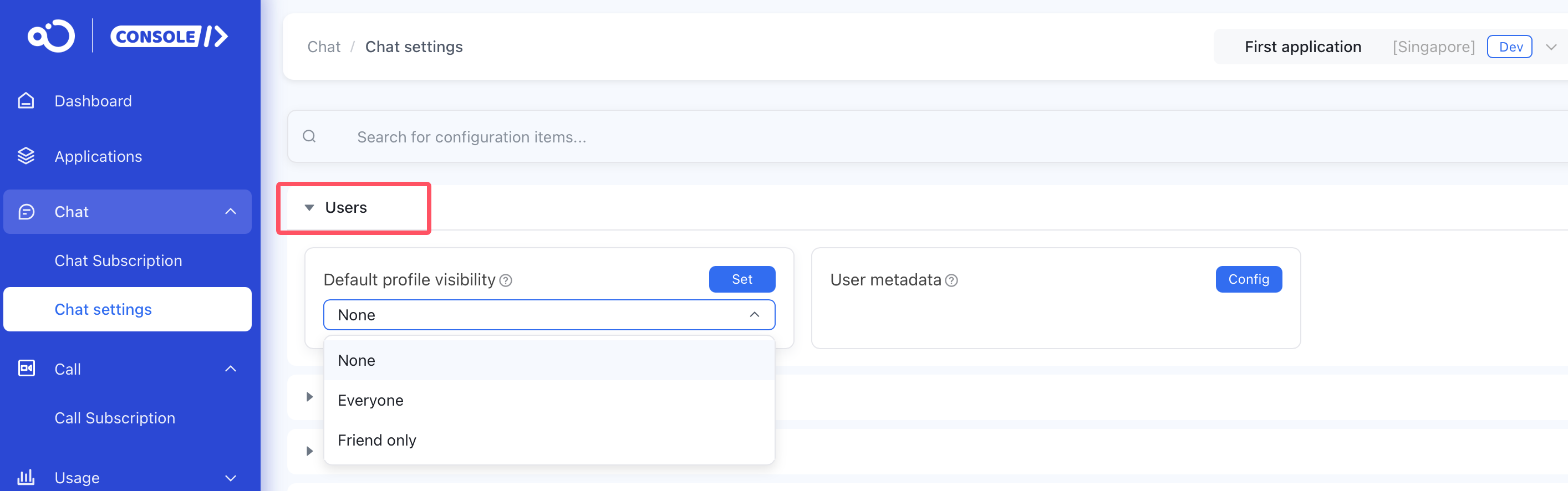
Default profile visibility
- Controls visibility permissions for user profiles in your application. Default setting hides profiles from all users, but only name and avatar are visible. Takes effect 15 minutes after activation.
User metadata
- Setting user metadata.
Push Notifications
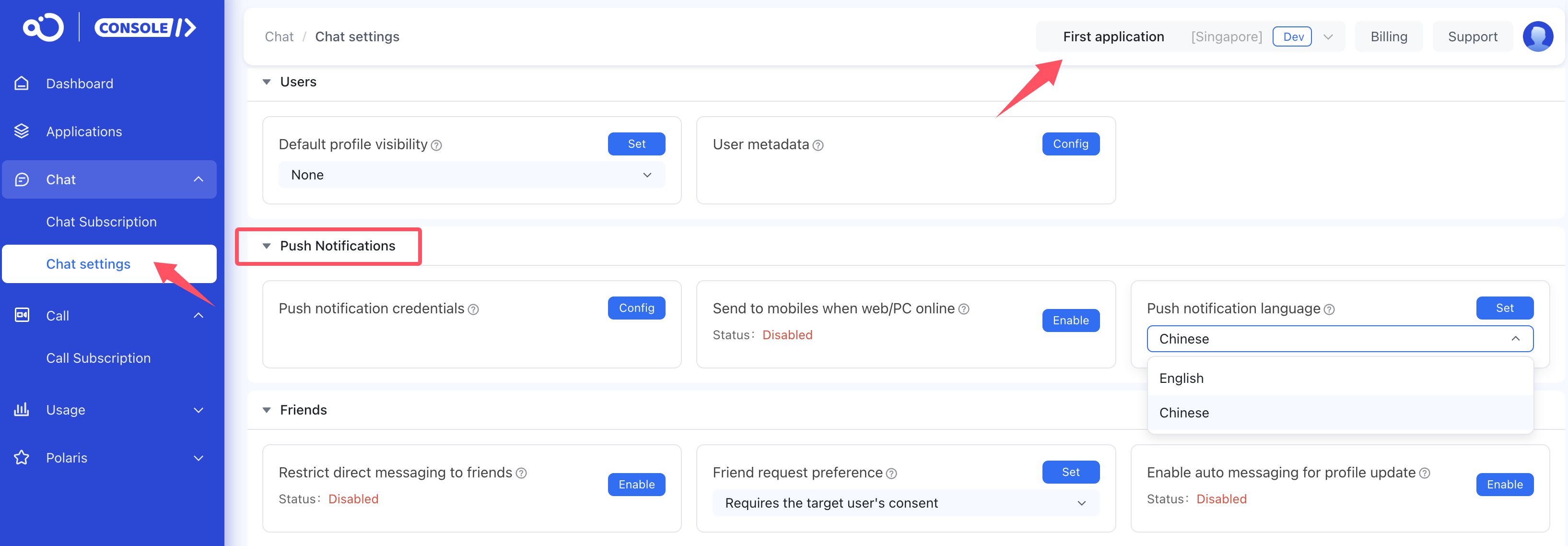
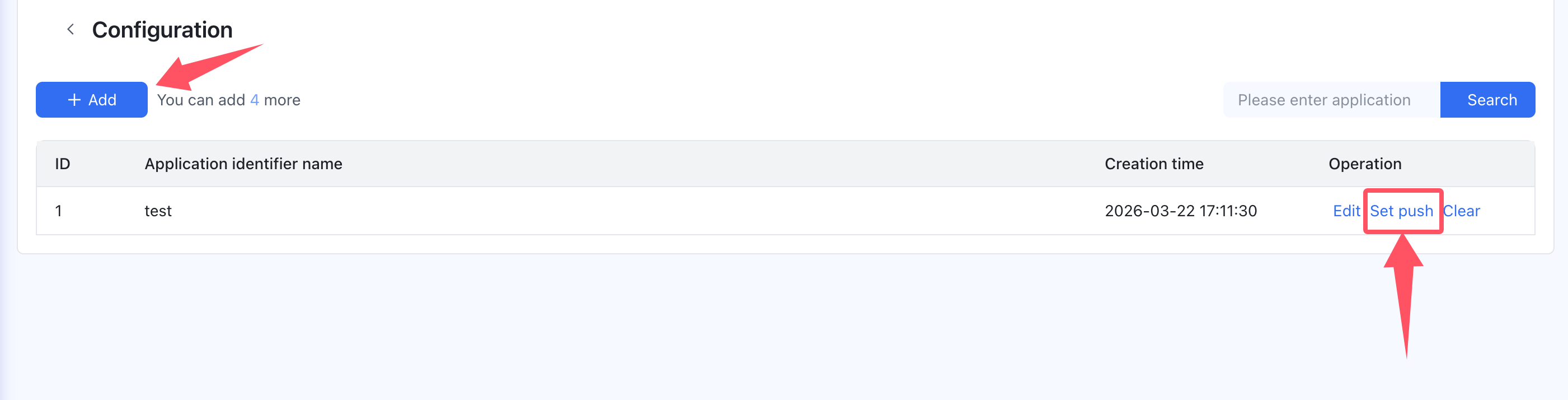
Push notification credentials
- Push notification services integrates with Huawei, FCM, and APNs push platforms.
Send to mobiles when web/PC online
- By default, when web or PC is online and mobile is offline, mobile devices don’t receive push notifications for new messages. After enabling, mobile devices receive push notifications.
Push notification language
- Controls push notification language. Default is English.
Friends
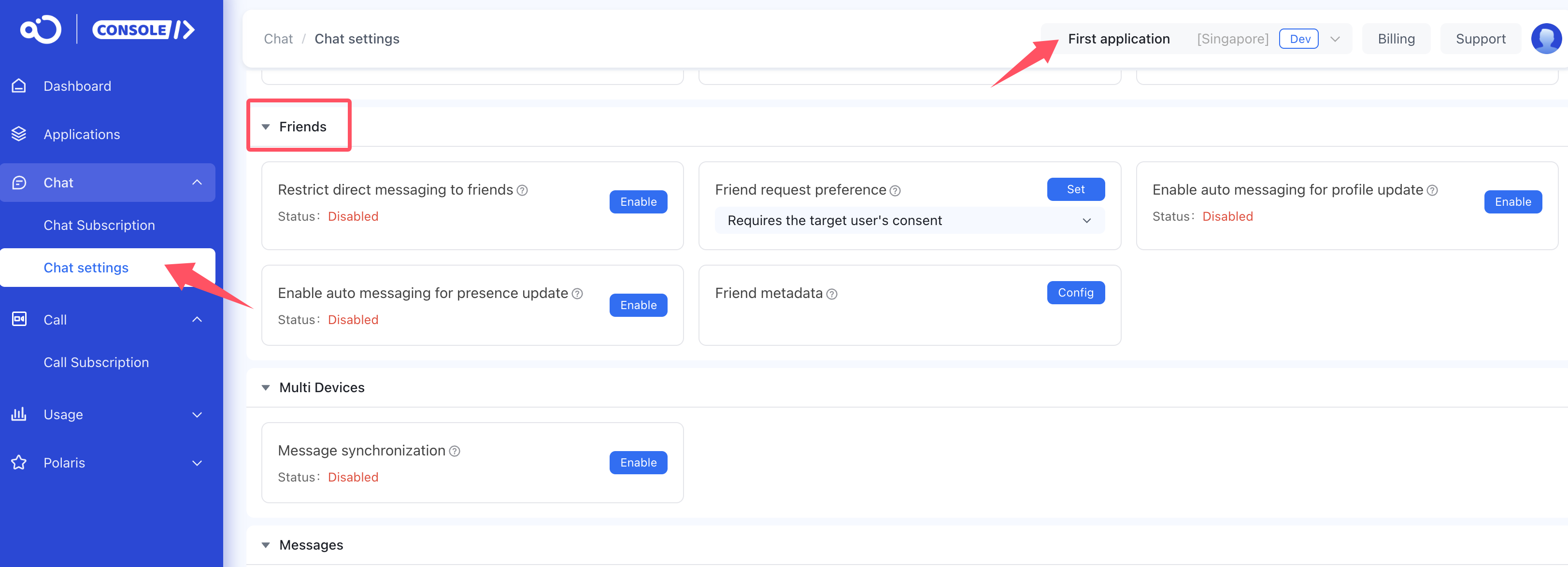
Restrict direct messaging to friends
- When enabled, one-to-one messages sent through the client SDK require friendship verification. By default, friend relationships aren’t checked. After enabling, messages can only be sent to users in the friend list. Server API messages aren’t restricted. User blocklist restrictions take priority over friend relationships.
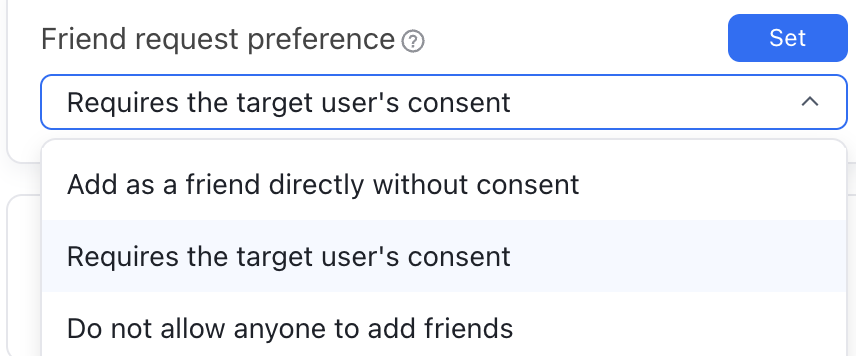
Friend request preference
- Controls the default friend request permission for your application. If users haven’t modified their own permission, the application default applies. Default setting requires target user approval to add as a friend.
Enable auto messaging for profile update
- When a user’s profile changes, it syncs to all their friends in real time by auto messaging. Friend profile change messages will be taken into count of downlink message statistics as one-to-one message distribution. Takes effect 15 minutes after activation.
Enable auto messaging for presence update
- When a user’s online status changes, it syncs to all their friends in real time by auto messaging. Takes effect 15 minutes after activation.
Friend metadata
- Setting friend metadata.
Multi Devices
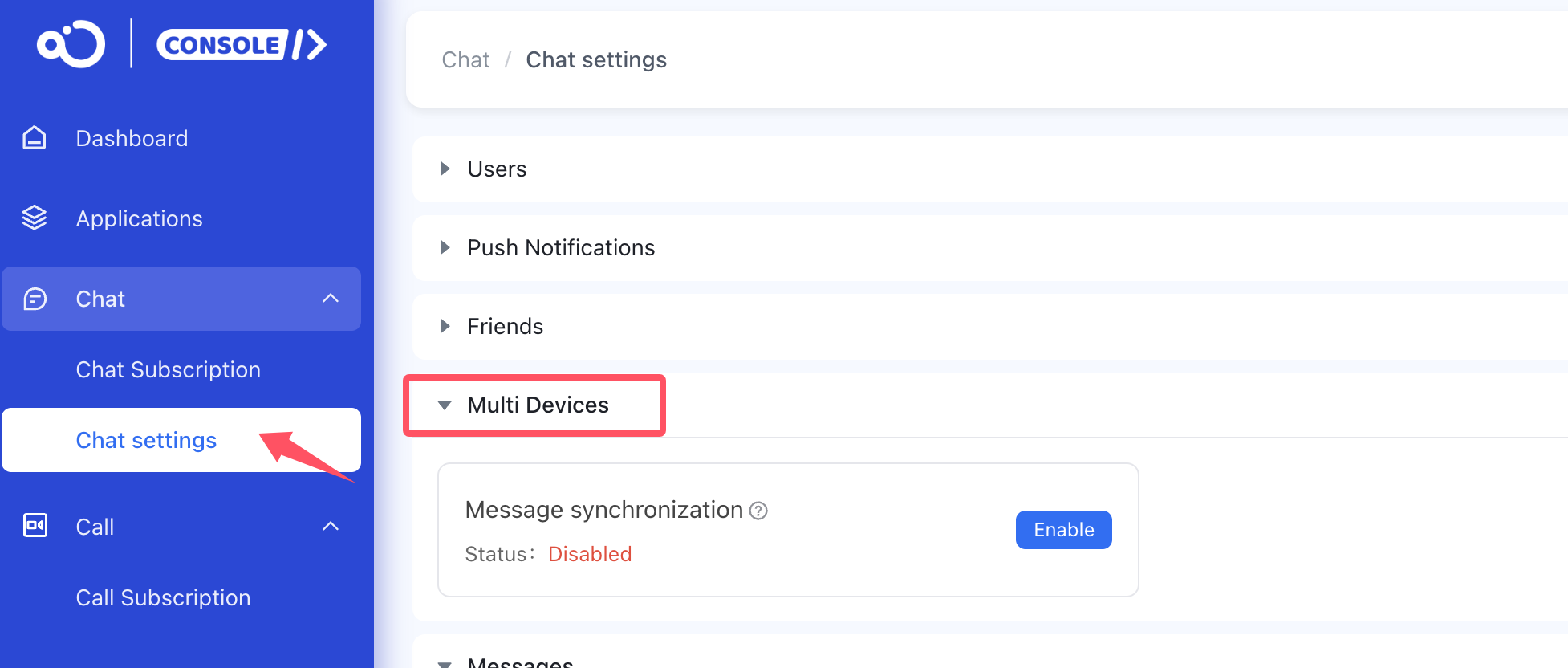
Message synchronization
- Supports message synchronization across web, desktop and mobile platforms, and allows multiple web clients online simultaneously.
Messages
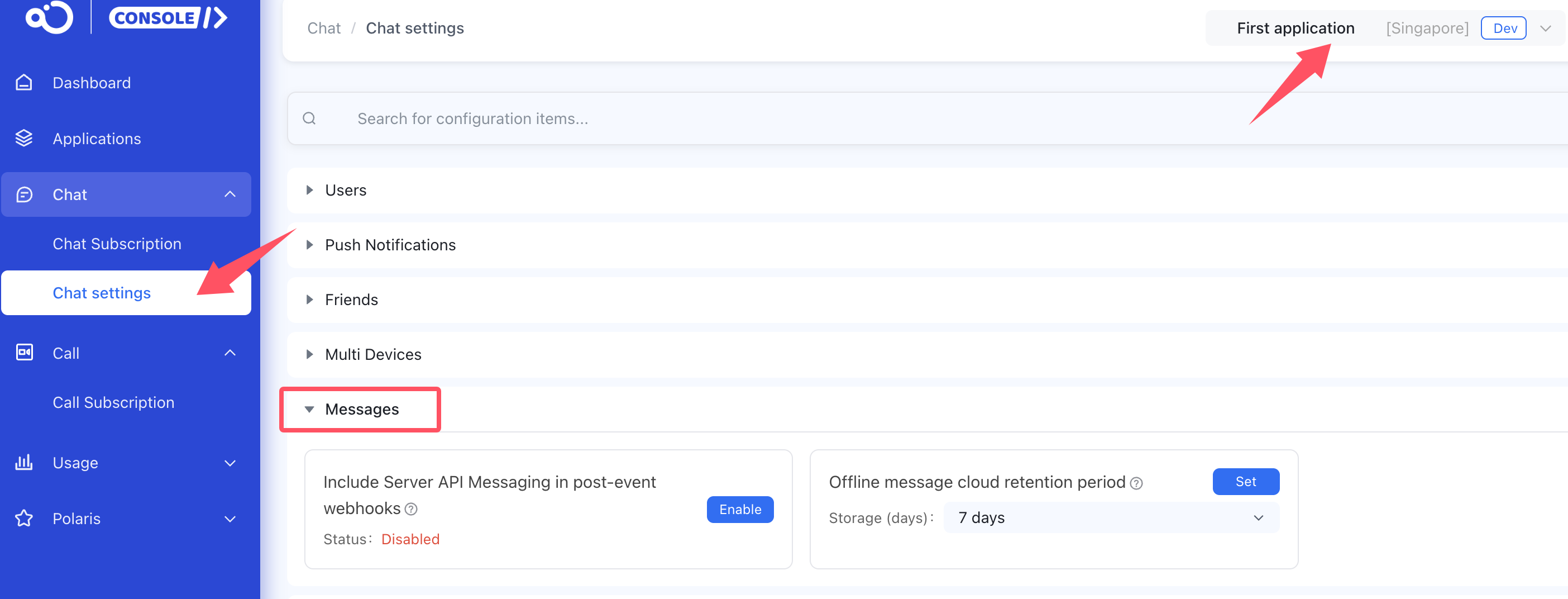
Include Server API Messaging in post-event webhooks
- By default, messages sent by server API are excluded from post-messaging webhooks. After enabling, messages sync to your application server through the post-messaging webhooks. Requires post-messaging webhook to be enabled first.
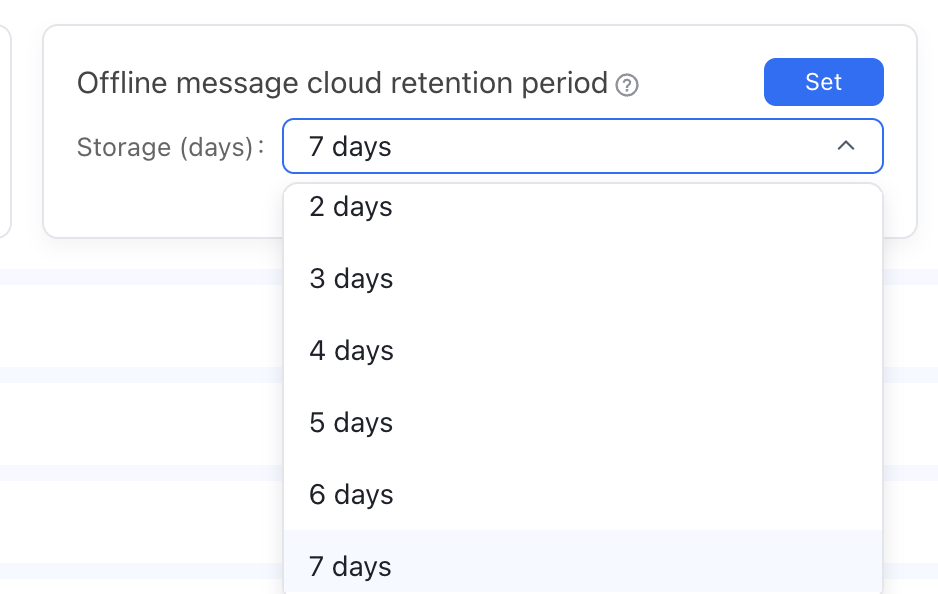
Offline message cloud retention period
- When target users are offline, received messages are retained. Default period is 7 days. Users receive offline messages on next login. Adjustable range is 1–7 days. (Applies only to direct, group and system channels)
Group Channels
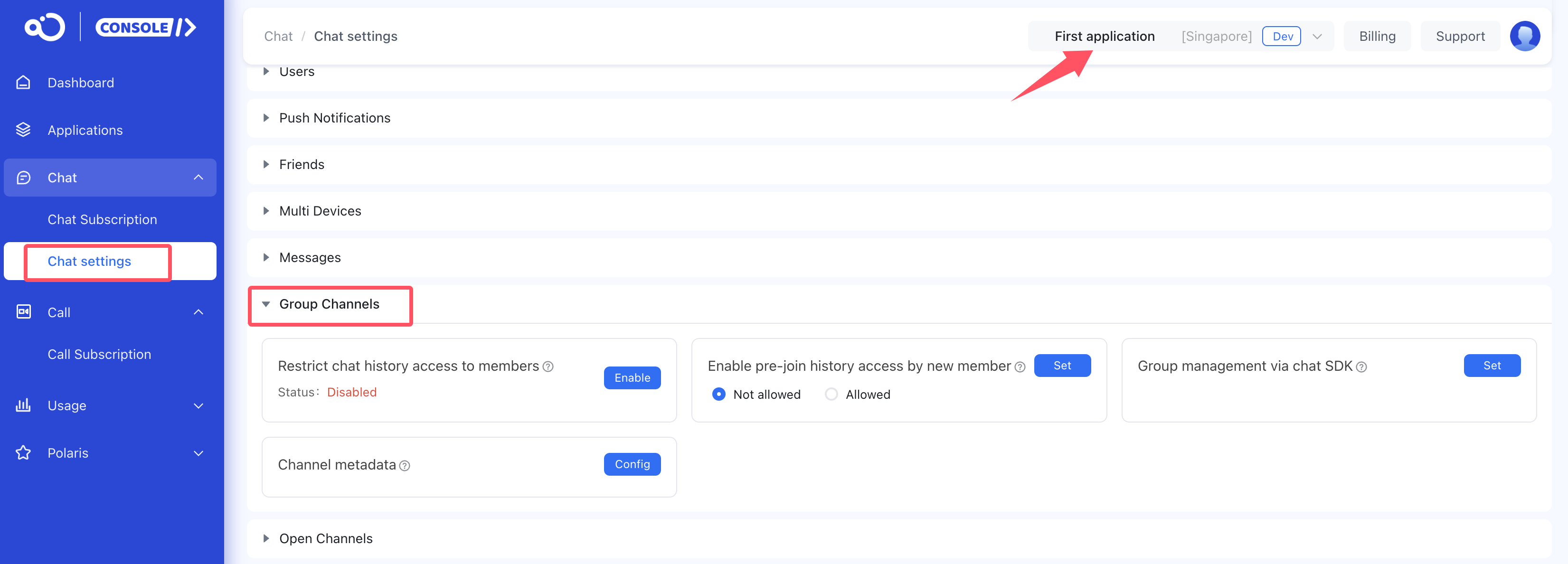
Restrict chat history access to members
- By default, users can’t retrieve group historical messages when not in the group. After enabling, users can retrieve group historical messages even when not in the specified group.
Enable pre-join history access by new member
- By default, users can only view messages sent after joining a group. Enable this option to allow users to view historical messages before they joined. This feature requires messages retention for direct and group channels to be enabled.
Group management via chat SDK
- Allows group operations via SDK by default. Operation permissions can be configured based on your business needs. Takes effect 15 minutes after setting.
Channel metadata
- Setting group channel metadata.
Open Channels
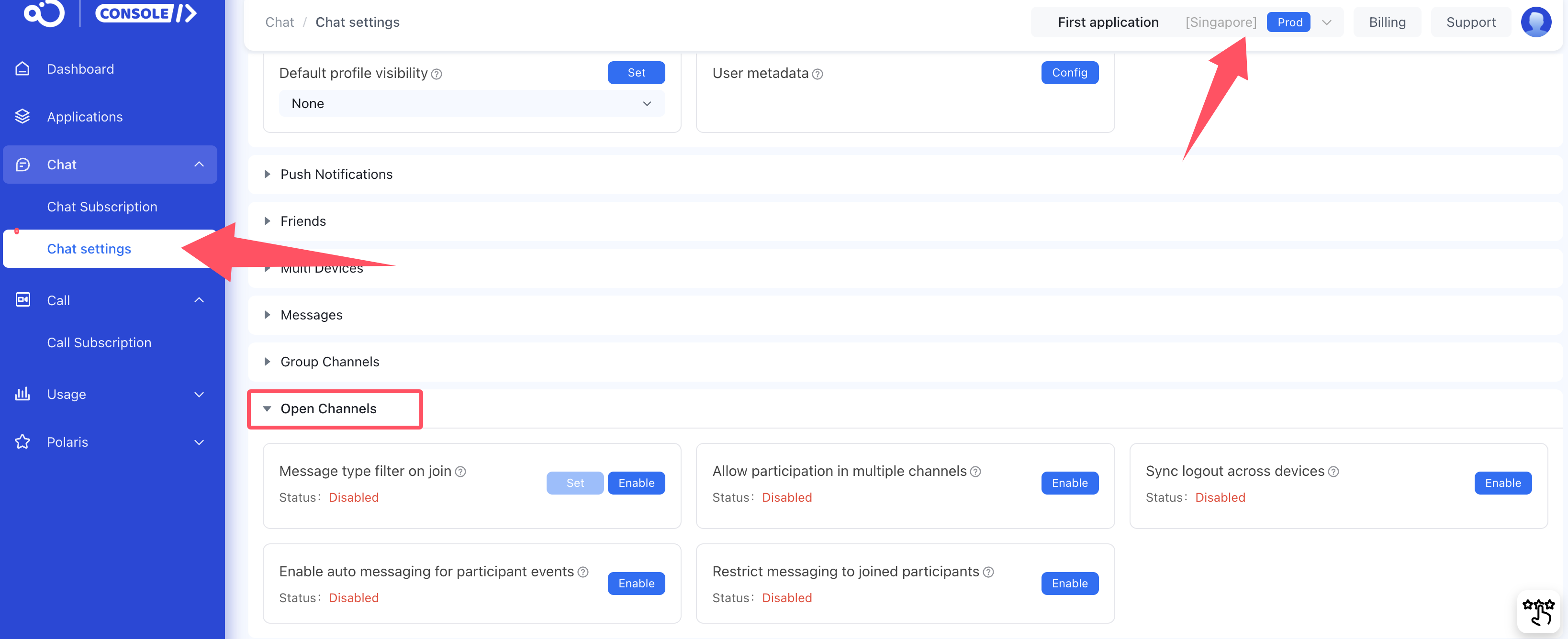
Message type filter on join
-
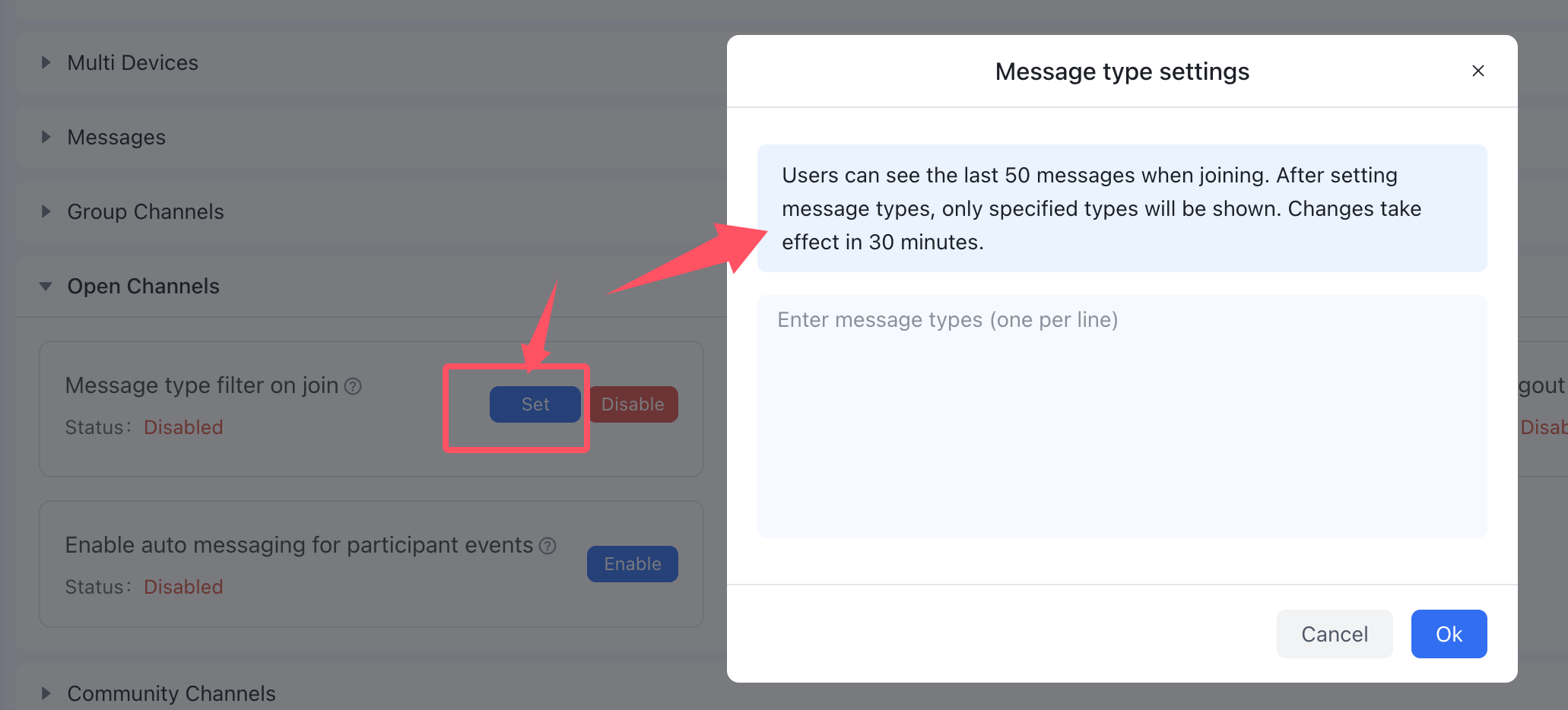
When a user is Joining an open channel on the client, the SDK fetches the latest messages (up to 50) by default, regardless of message type. After enabling this service, you can configure the allowed message types to fetch. New customers joining the open channel will fetch the latest messages of the specified types. This configuration does not affect receiving messages online after joining the open channel.
-
Click Set, and enter the Object Name of the message type in the pop-up window. For the Object Name of Nexconn built-in message types, see Message type overview.
Allow participation in multiple channels
- Allows a single user to join multiple channels simultaneously.
Sync logout across devices
- When users are online on multiple devices and have joined the same channel, logout from one device doesn’t log out from other devices. After enabling, if a user logout from one device, other devices also logout from the channels when multiple devices are online.
Enable auto messaging for participant events
- After users join or exit a open channel, it can notify other members in the open channel by auto messaging, which increases message volume. Default is disabled.
Restrict messaging to joined participants
- Prevents users from sending messages to open channel they haven’t joined.
Community Channels
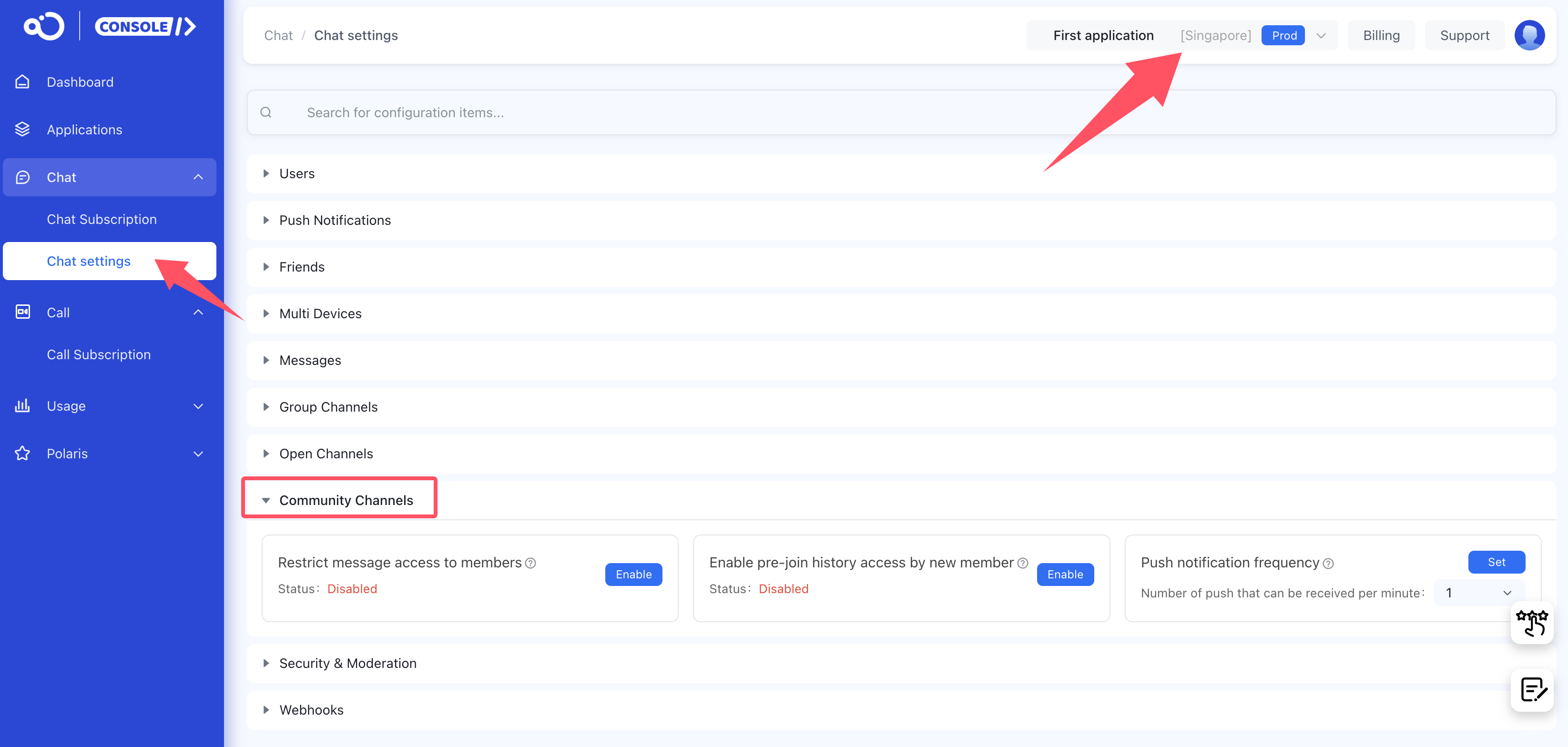
Restrict message access to members
- Controls whether non-members can access the default channel of Community Channels in the channel list. Purchase Chat Pro plan to use the community channel service.
Enable pre-join history access by new member
- When enabled, new members can access group historical messages from before they joined. Purchase Chat Pro plan to use the community channel service.
Push notification frequency
- By default, users receive one push per minute in each channel and subchannel. Maximum limit is 60 per minute. Purchase Chat Pro plan to use the community channel service.
Security & Moderation
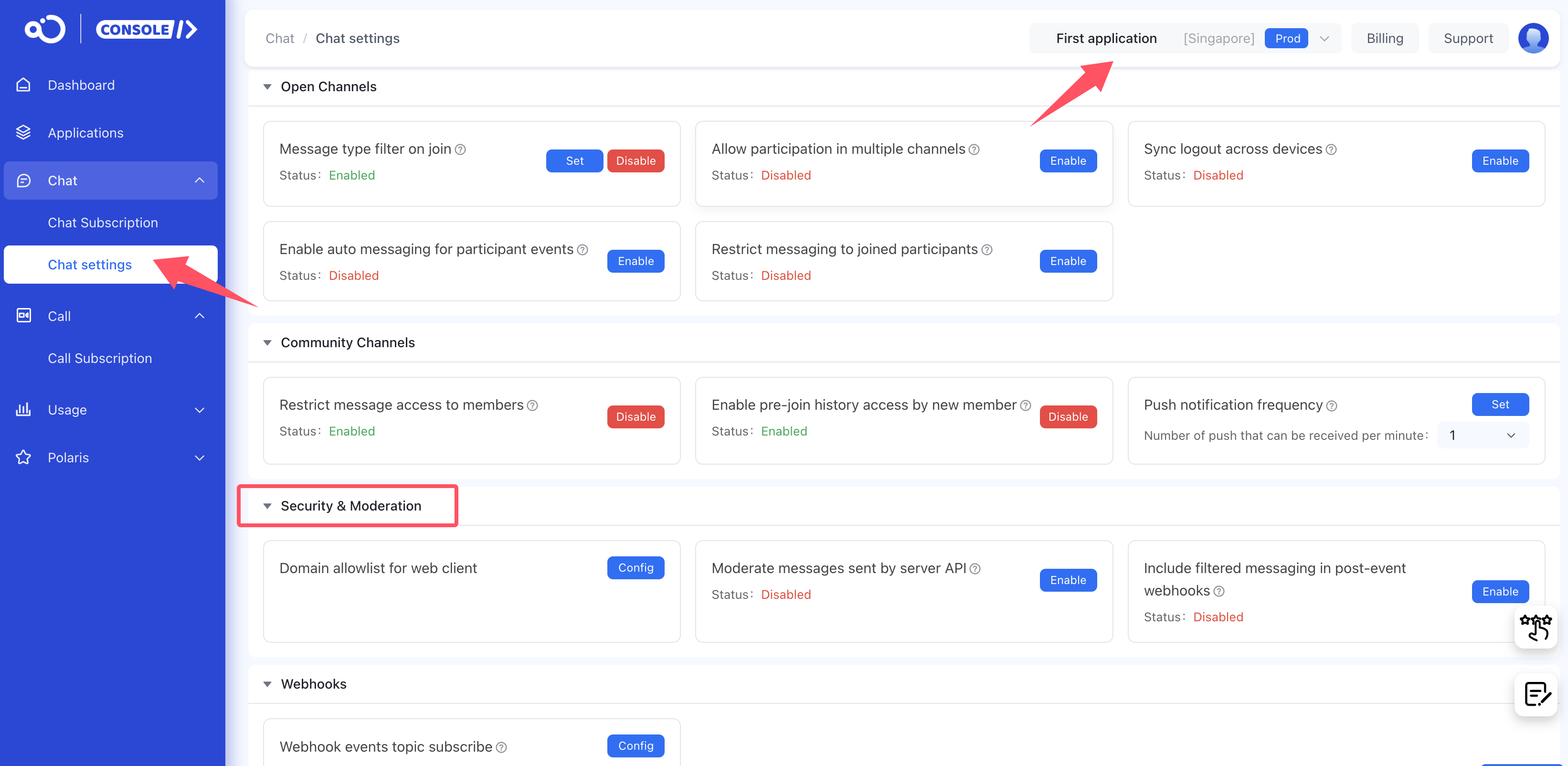
Domain allowlist for web client
-
After setting web security domains, JavaScript SDK can only call server resources from these domains in production environment. No restrictions in development environment.
-
Domain configuration follows browser domain security policies. Domain and port must match exactly. If default port is 80, no need to set the port.
-
One domain per line, separated by line breaks. Takes effect 15 minutes after setting. (Supports up to 100 domains.)
Moderate messages sent by server API
- Include messages sent by server API in content moderation, and pre-messaging webhooks.
Include filtered messaging in post-event webhooks
- Controls whether to sync filtered messages containing profanity words to your application server through post-messaging webhooks.
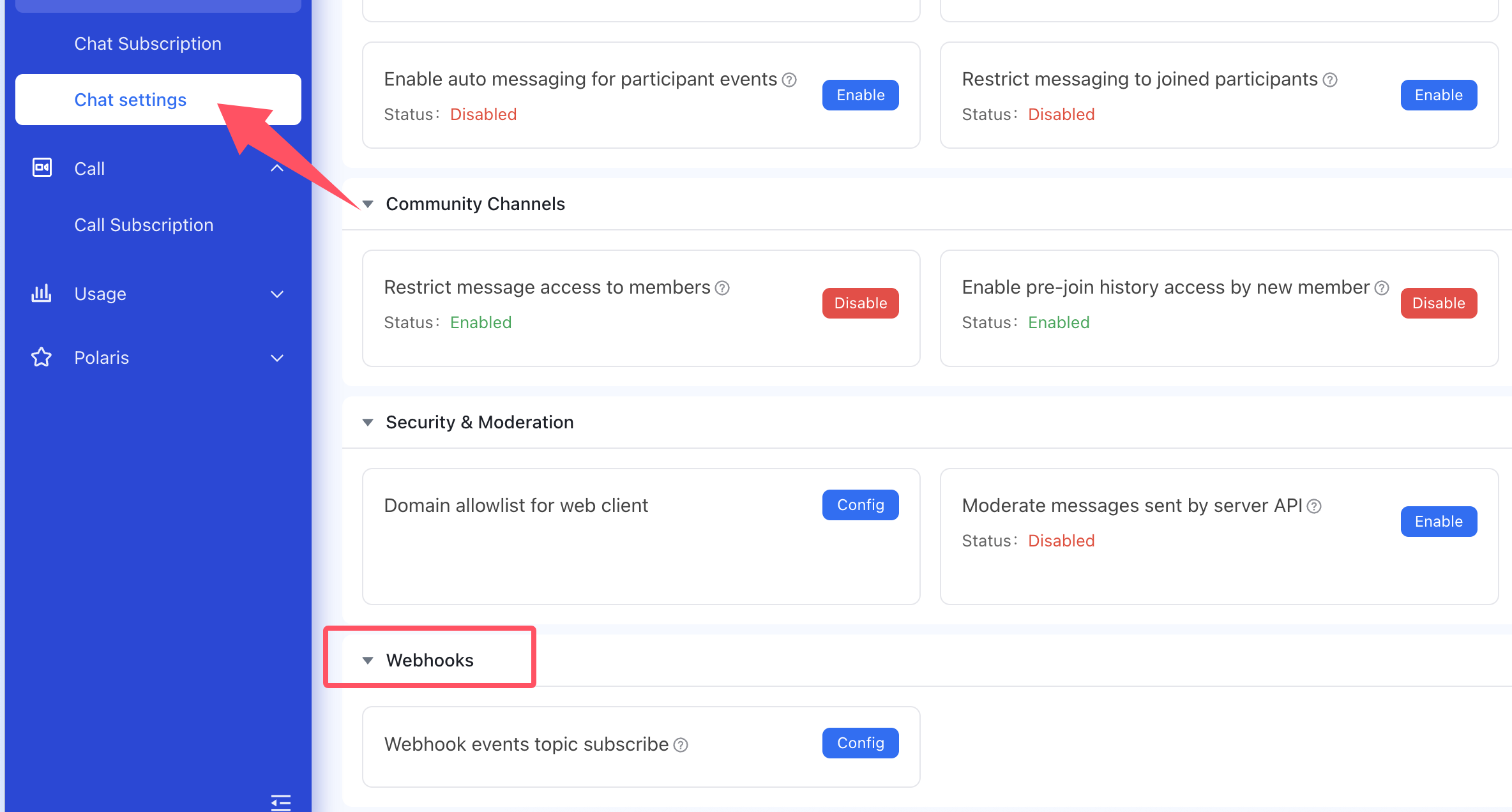
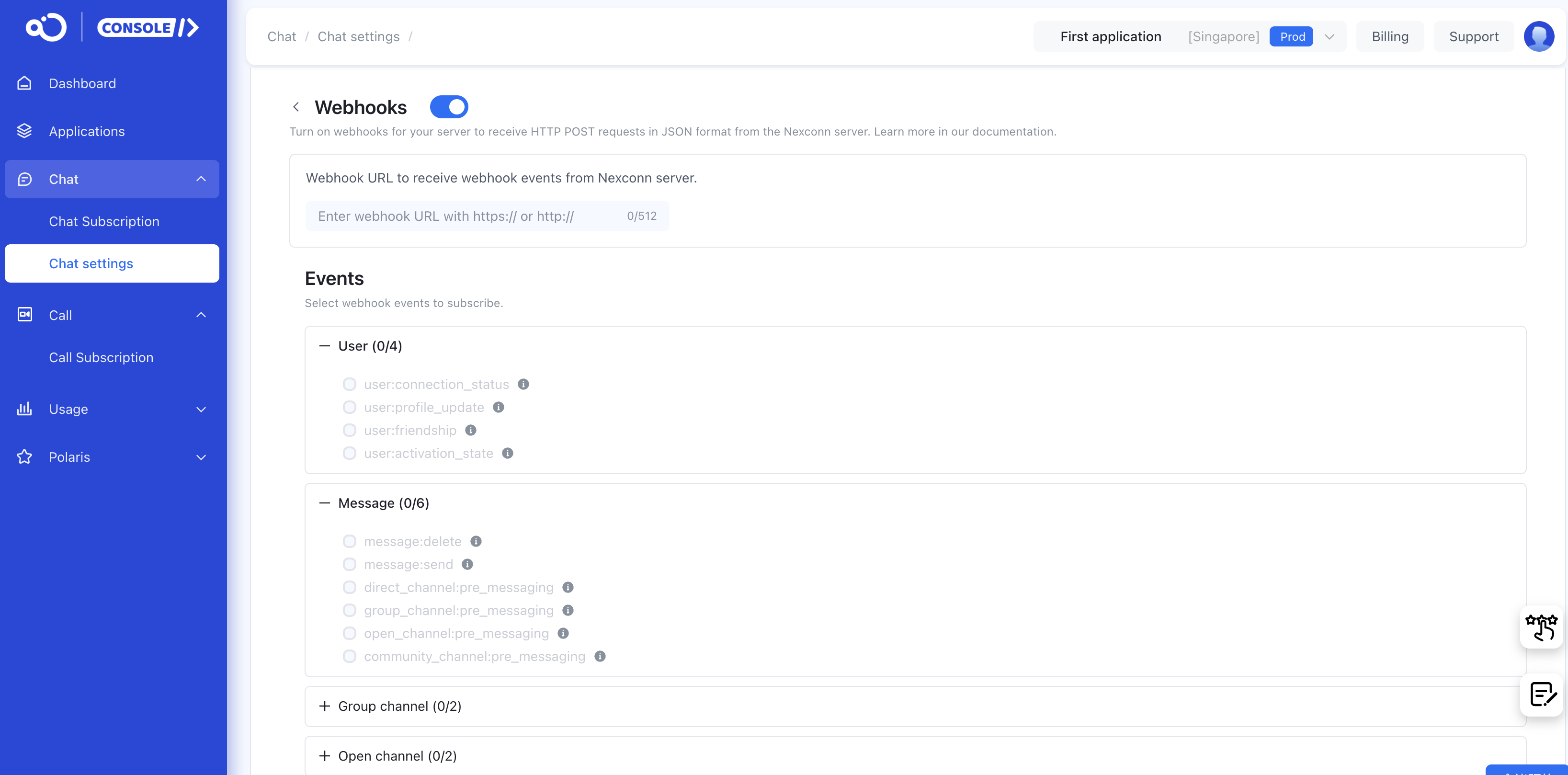
Webhooks
Webhook events topic subscribe
- Webhook: Overview
If you have any questions about this feature, submit a ticket to contact us.